MIA allows you to make calls directly from your computer, without a physical phone.
This guide shows you only what you truly need to know.
TABLE OF CONTENTS
Call from your computer
Before your first call
Set your audio settings to avoid surprises.
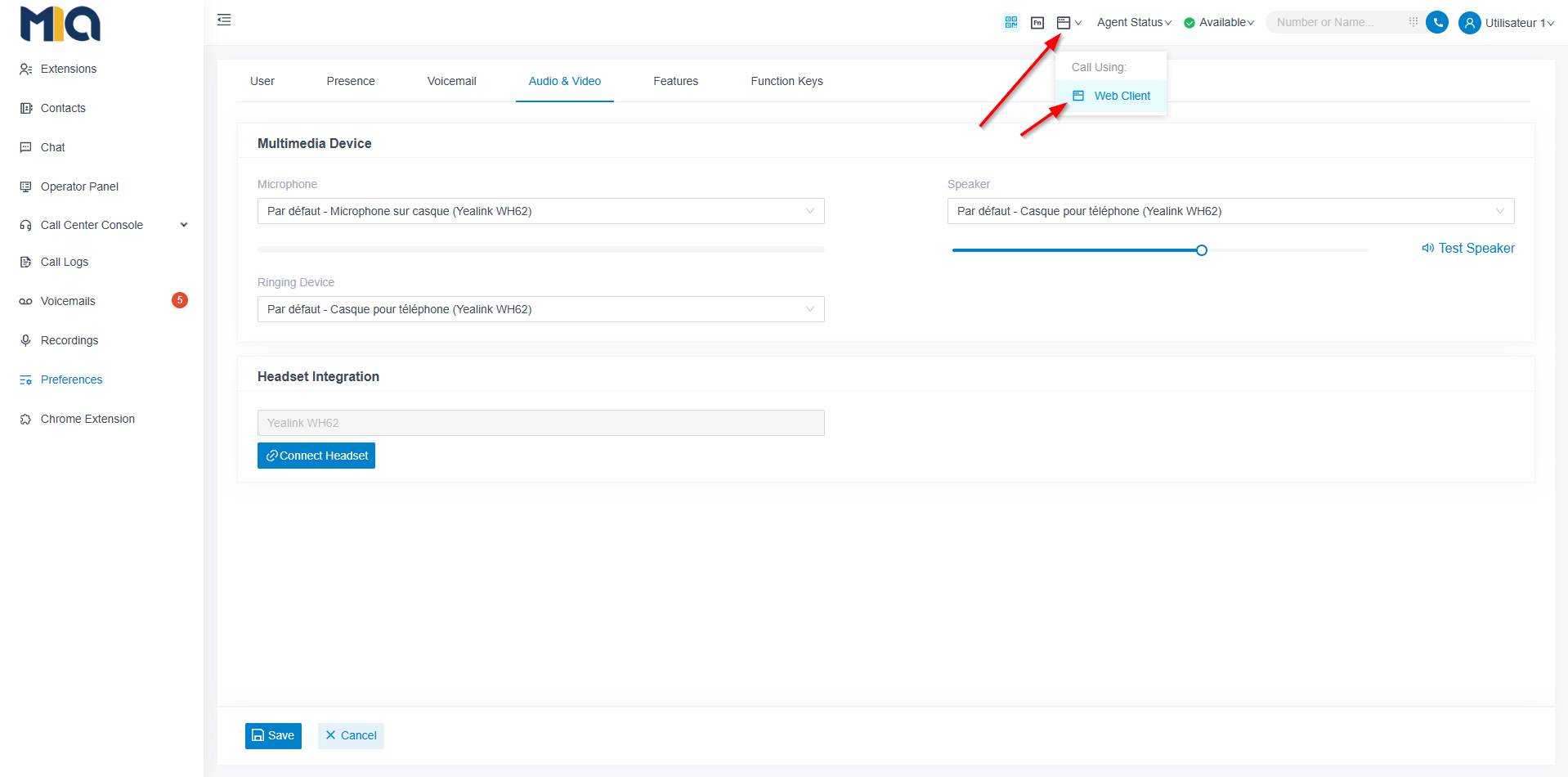
- Open Preferences → Audio and Video
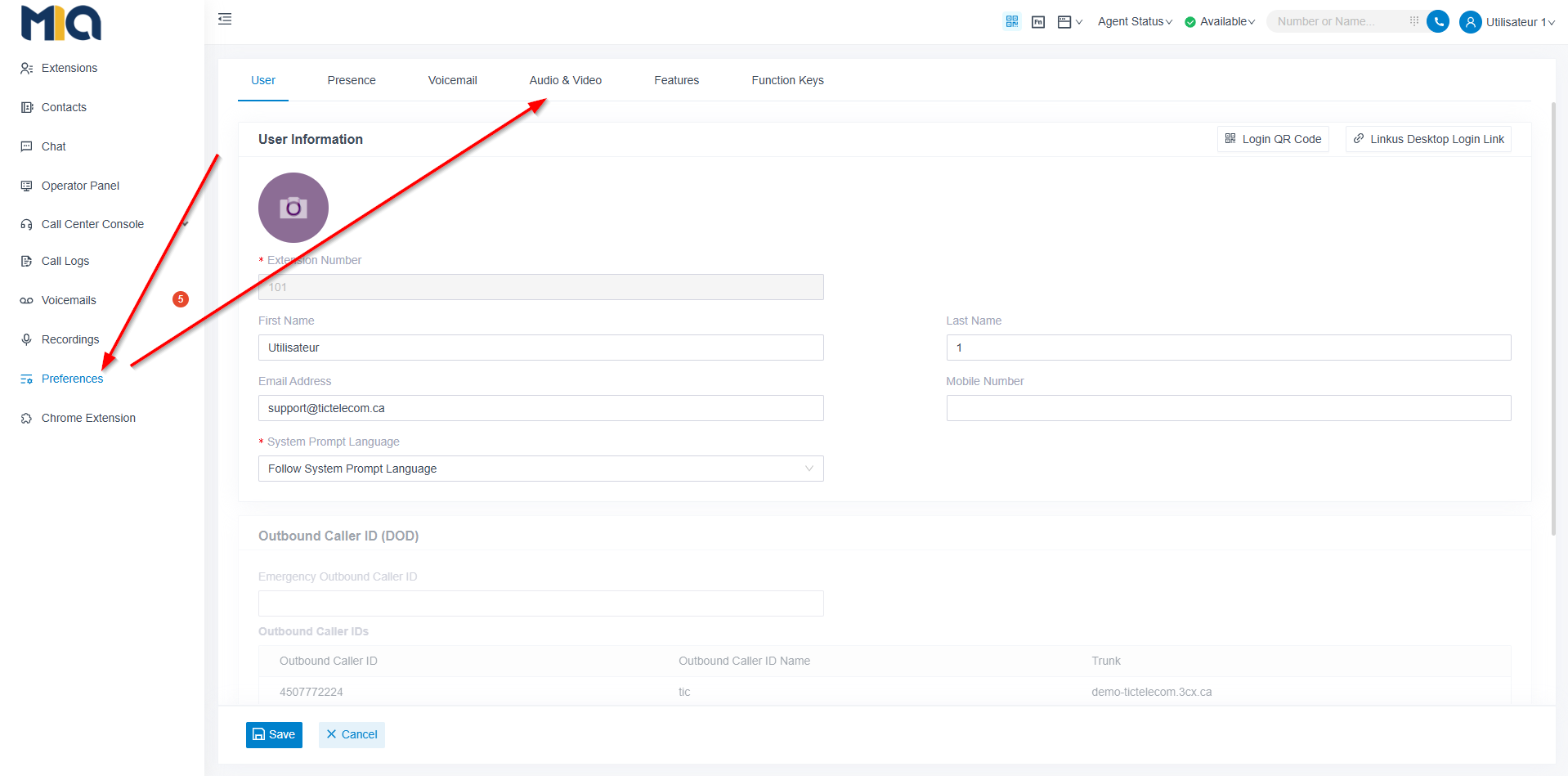
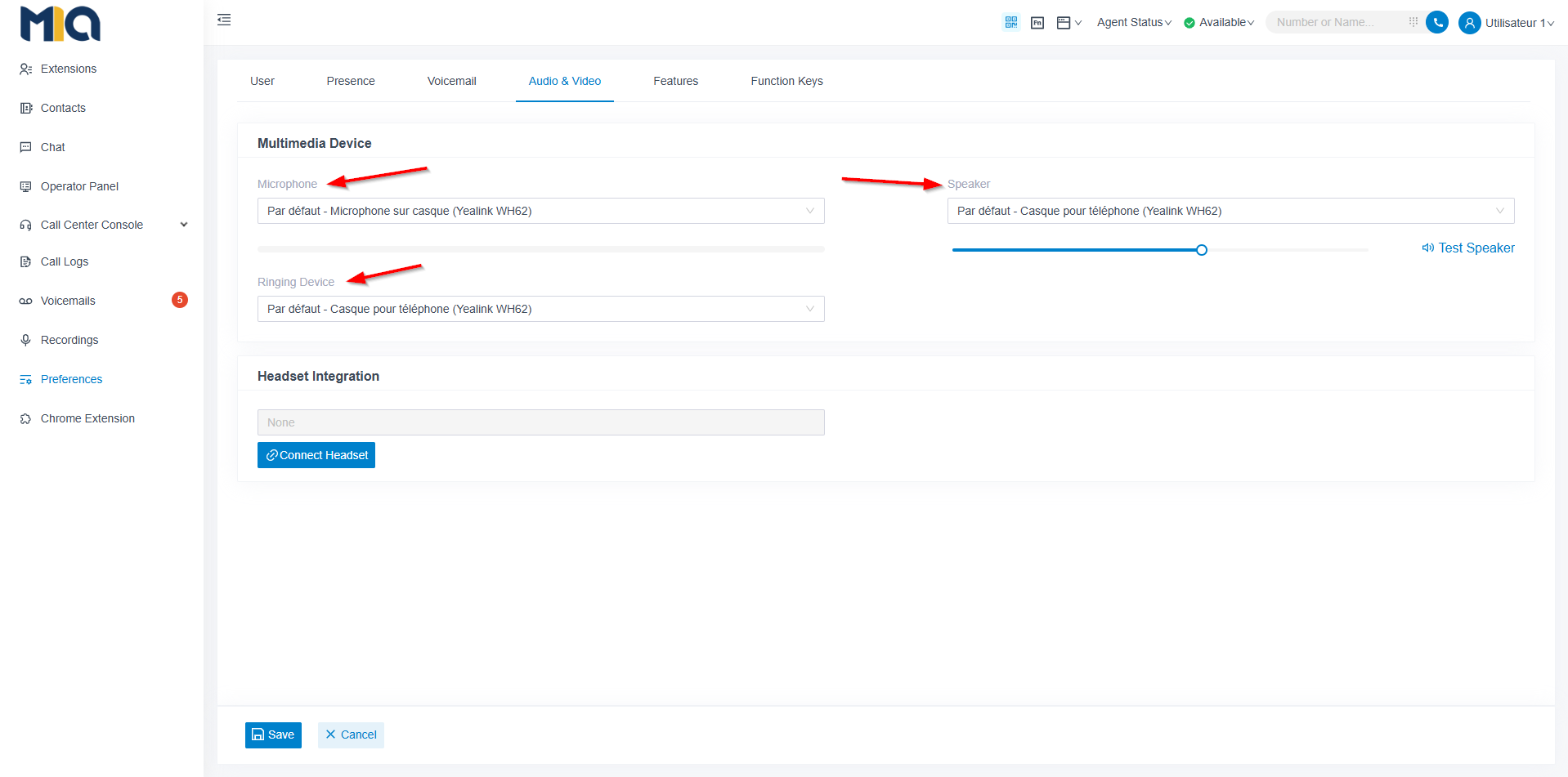
- Make sure the correct devices are selected: microphone, speaker and ringtone
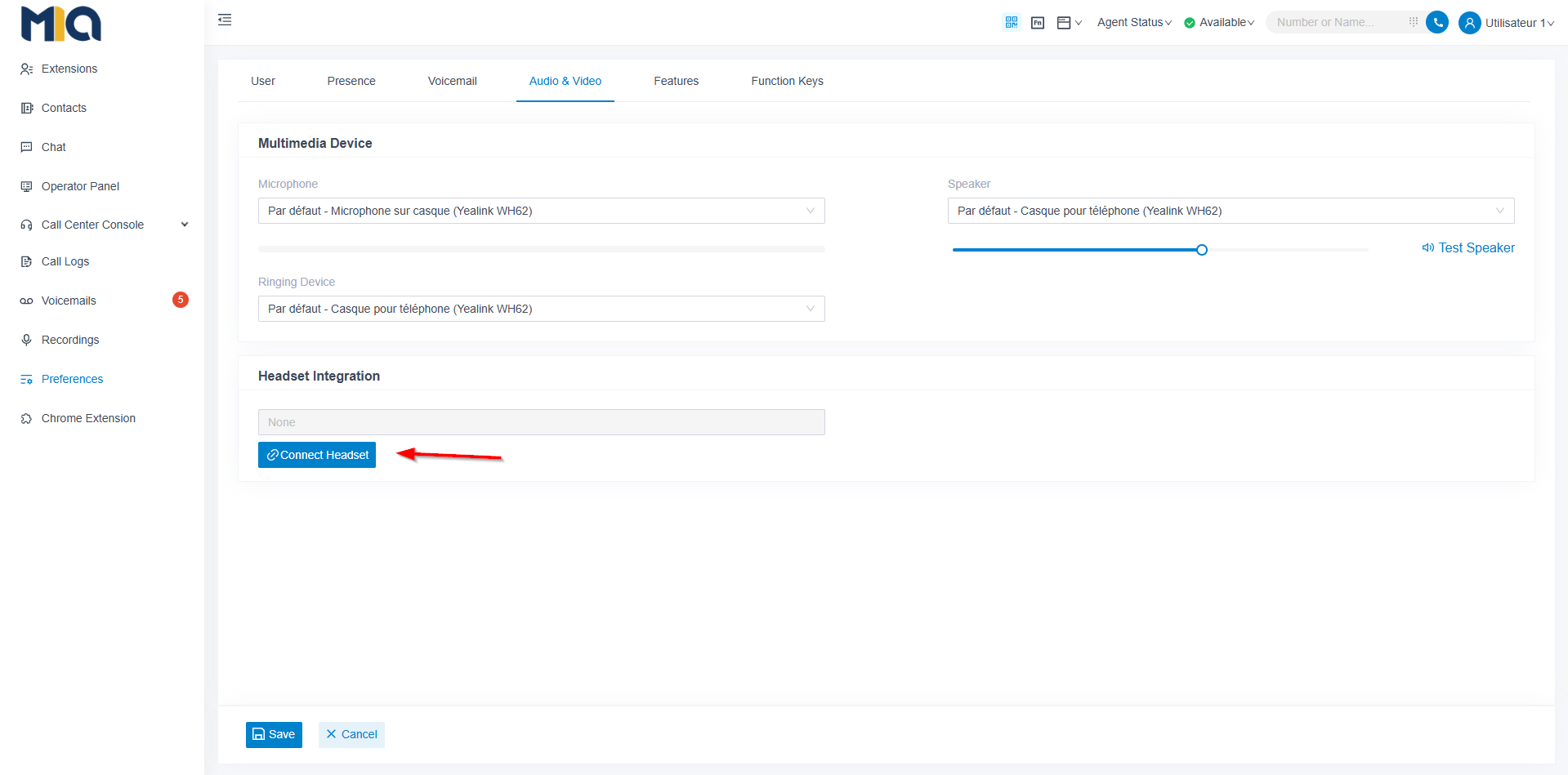
- Headset connected? Click Connect Headset to verify if your headset is compatible with the integration, allowing the headset hook button to interact with calls.
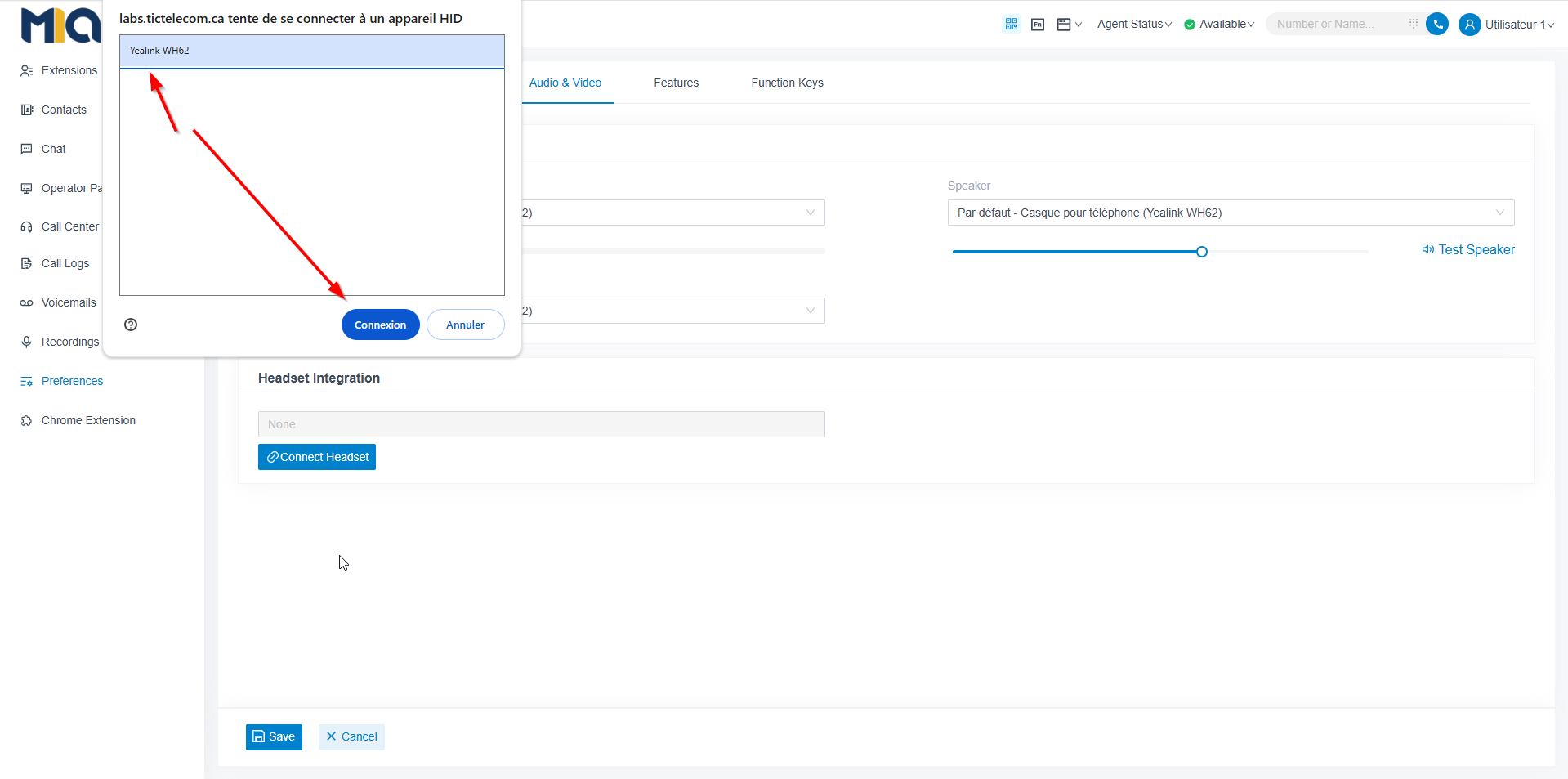
- Click Save
✔️ You’re ready.
Choose your calling device
By default, MIA uses the Web Client (call from your computer).
You can also choose:
- The desktop application "Linkus"
- A compatible IP phone
☎️ Make a call
- Enter an external number or internal extension
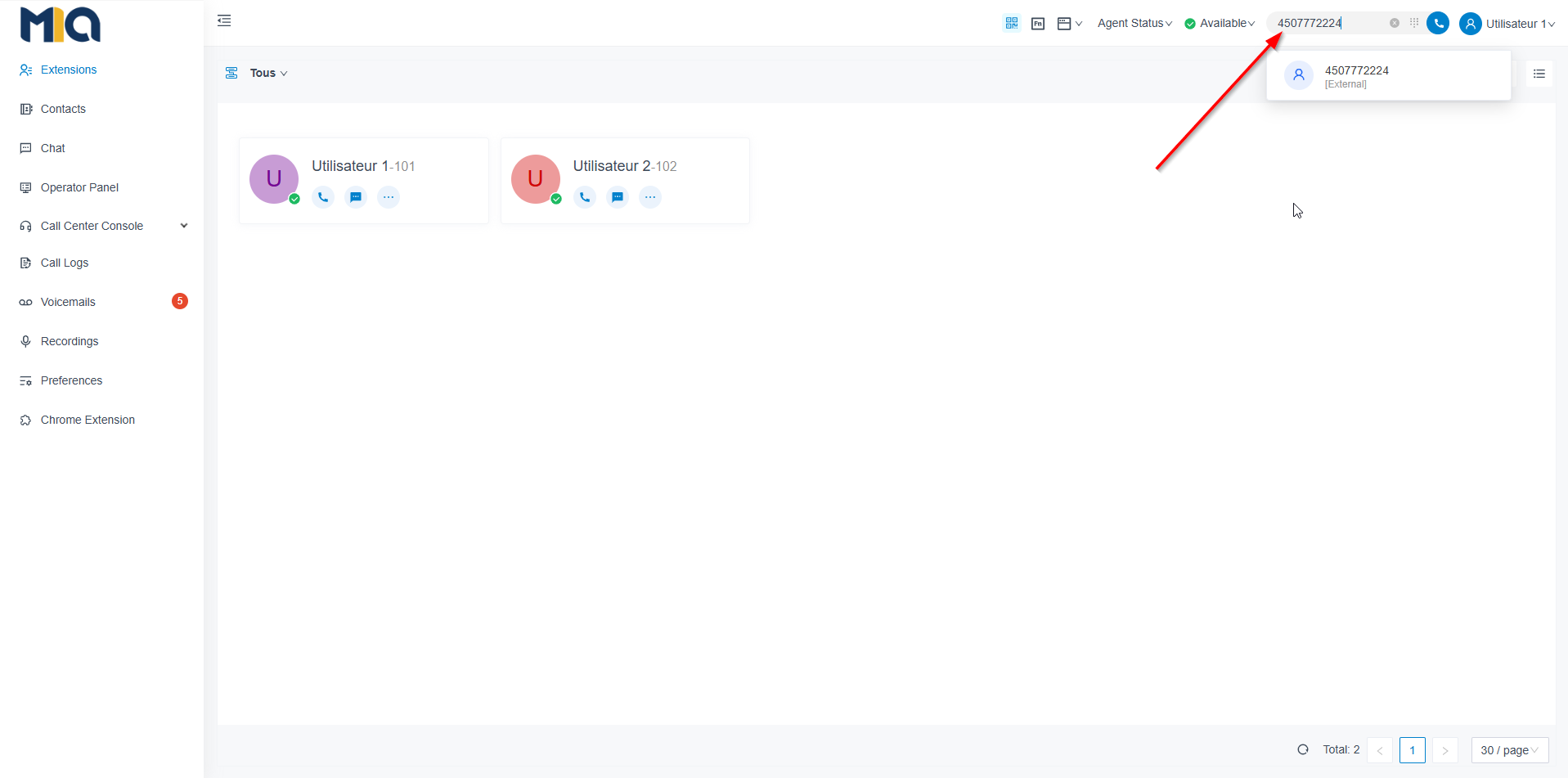
- Click Call
That’s it.
Transfer a call
Do you want to notify your colleague first?
Use attended transfer. (Ideal to announce the call.)
- During the call, click Transfer → Attended Transfer
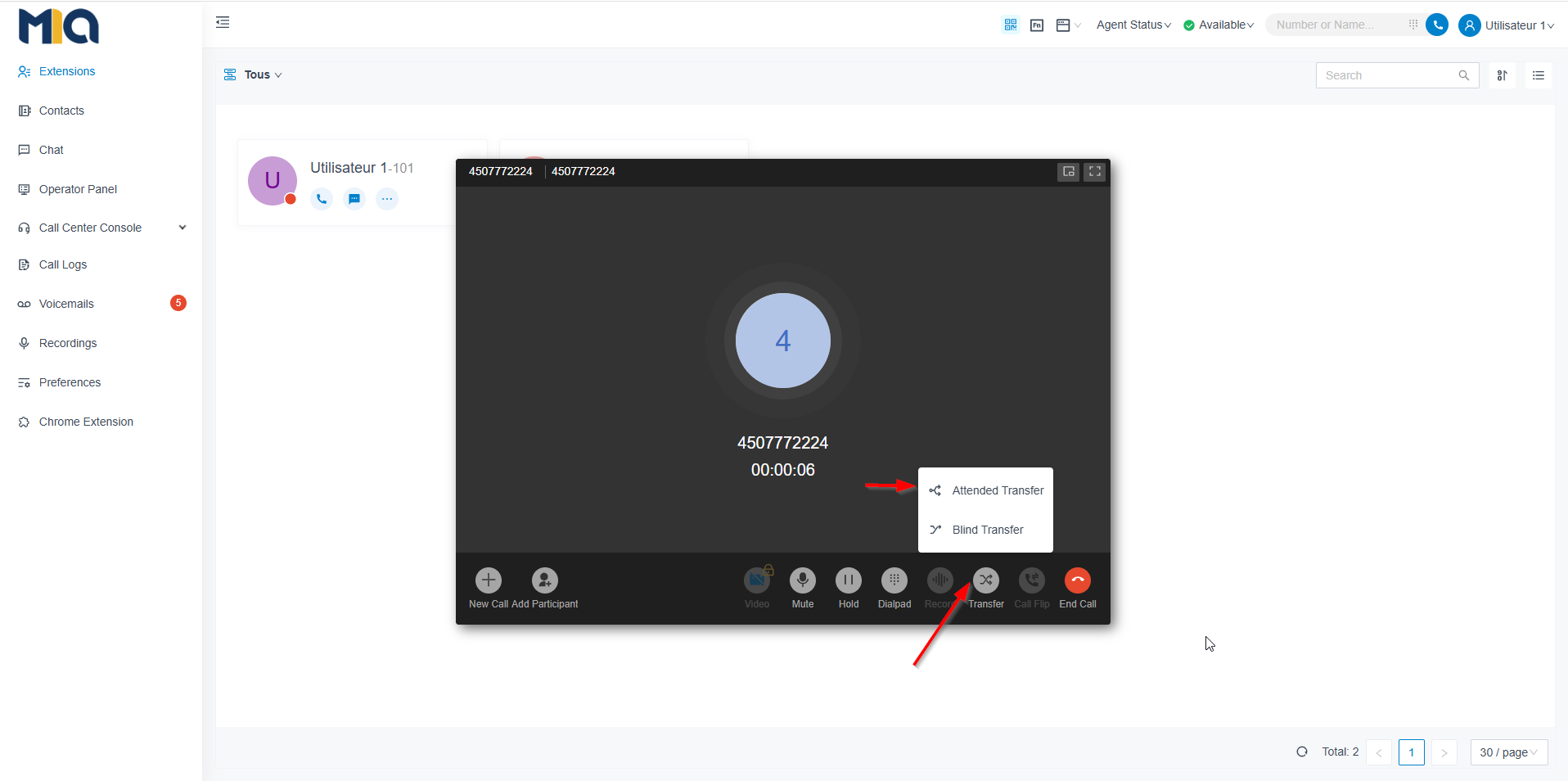
- Call the person you are transferring to
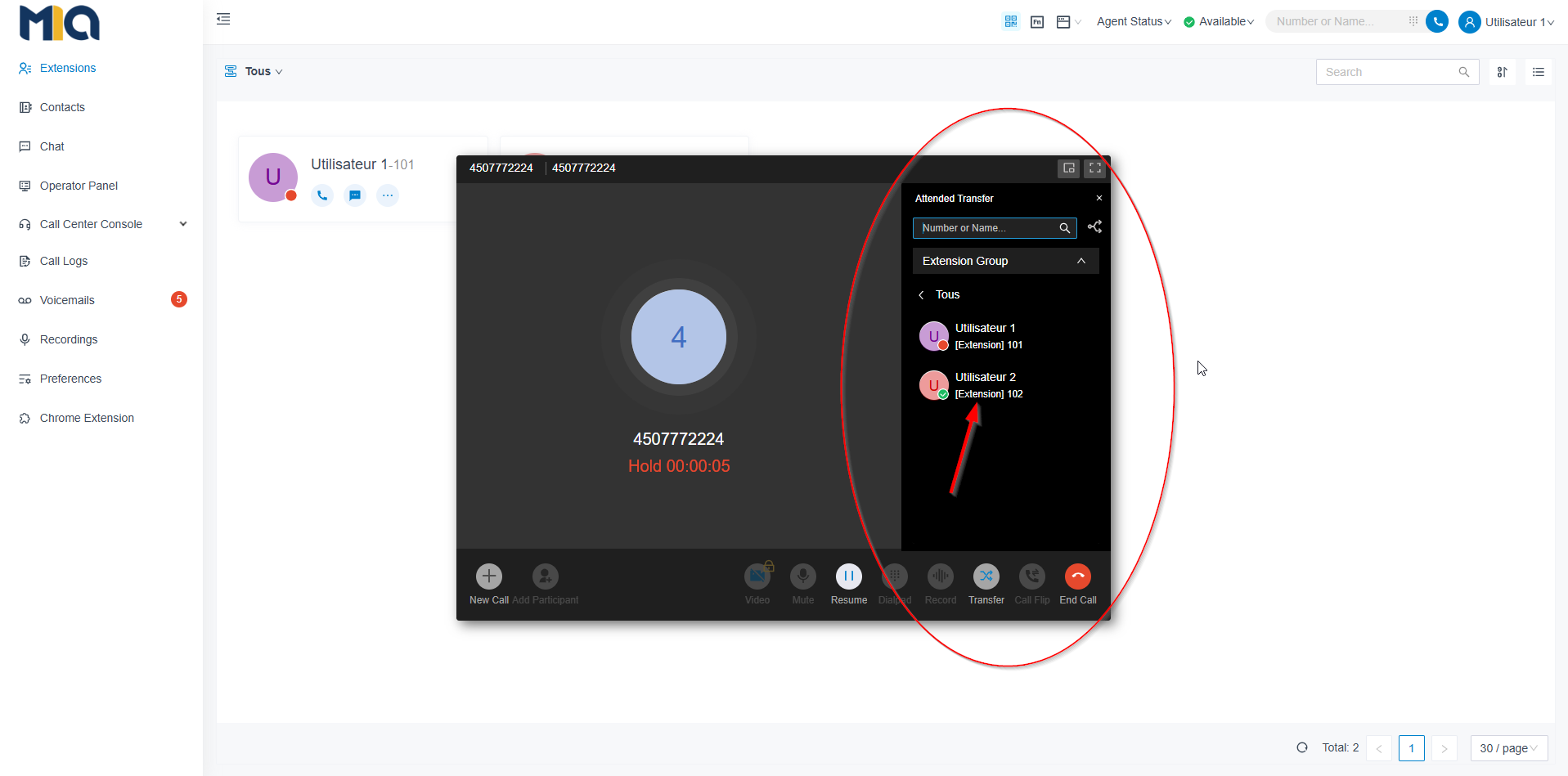
- When they are ready, click Transfer
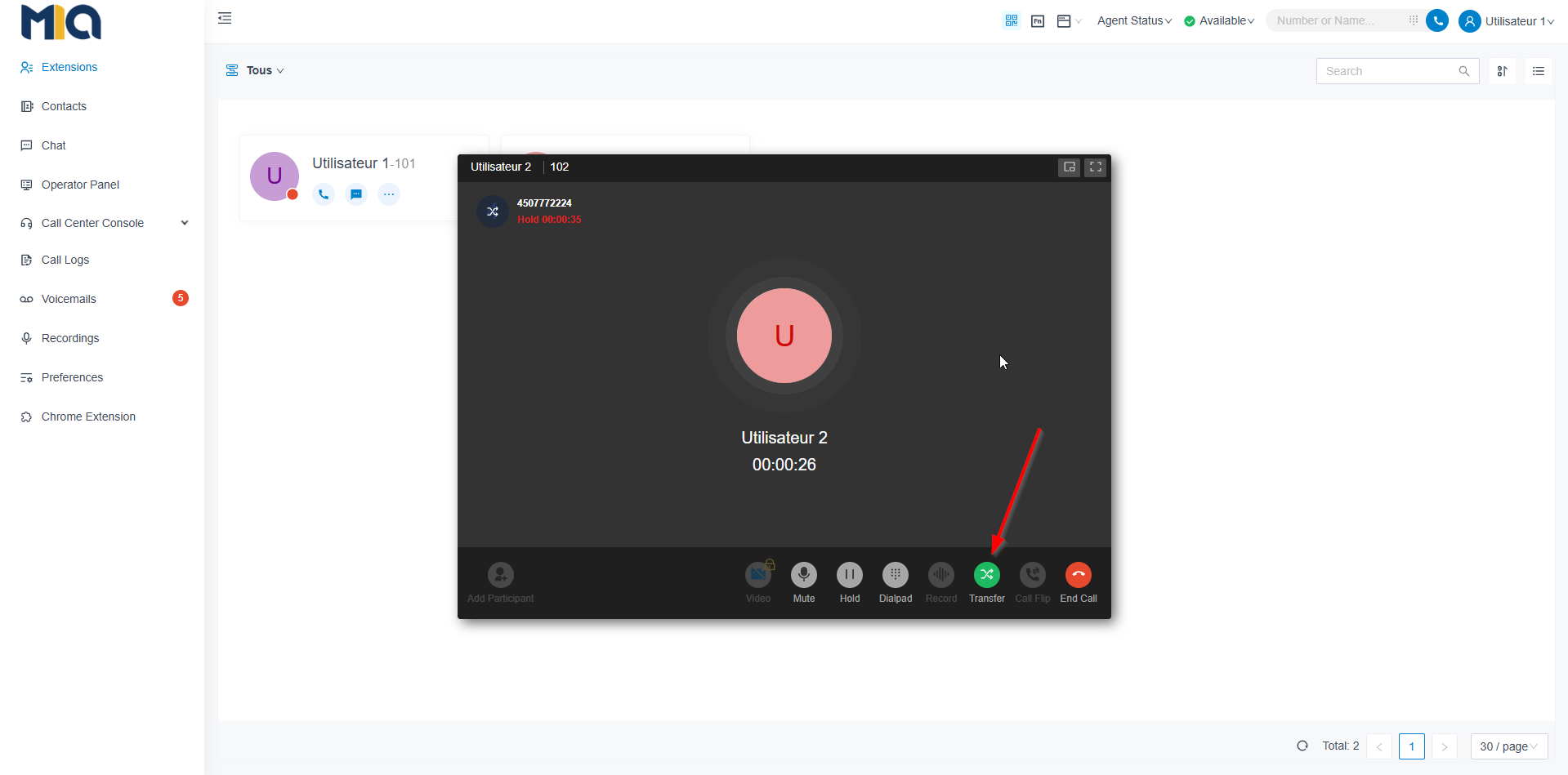
✔️ The call is transferred.
Do you want to transfer without announcing?
Use blind transfer (Fast and direct)
- Click Transfer → Blind Transfer
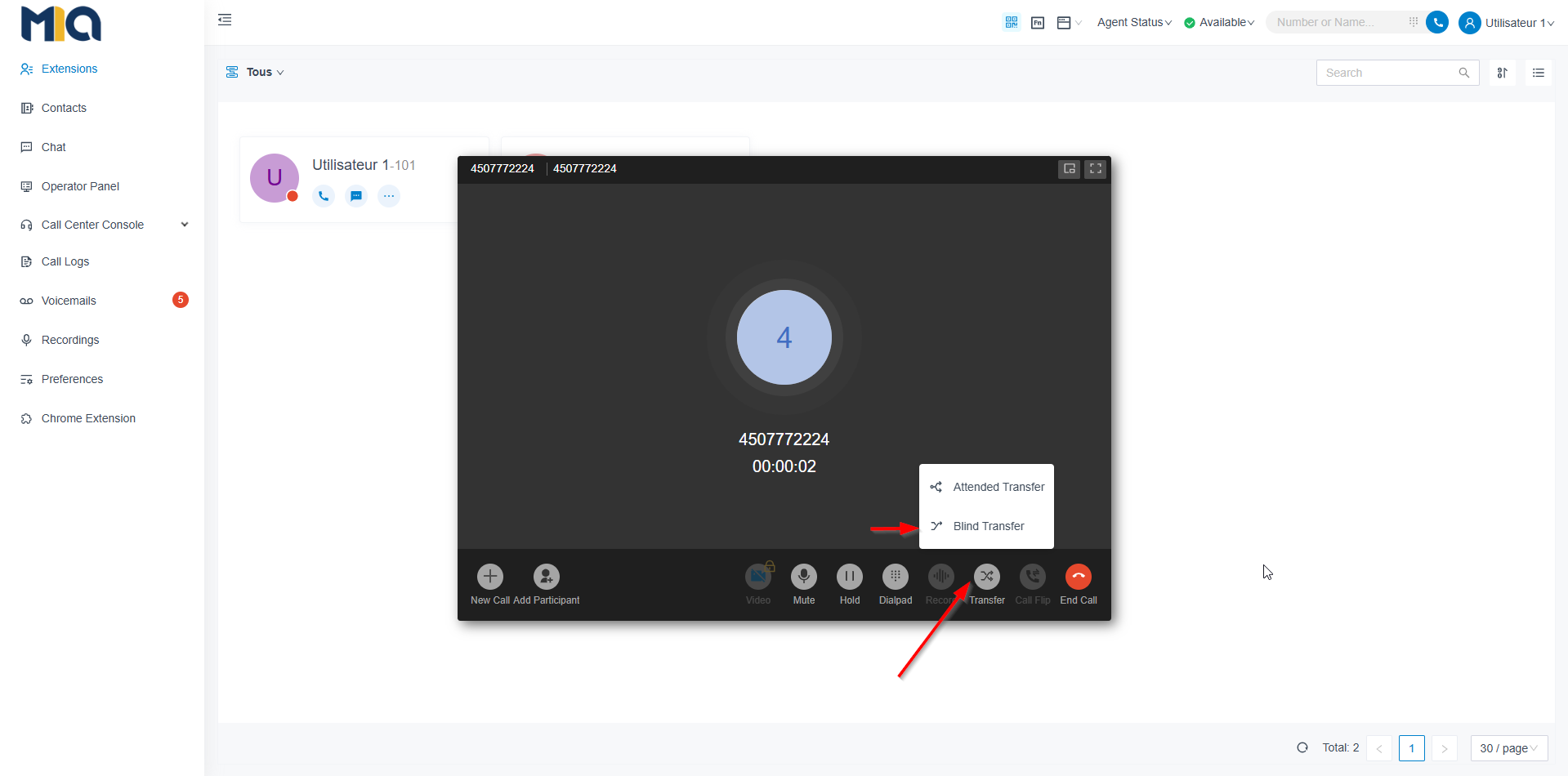
- Select the number or extension
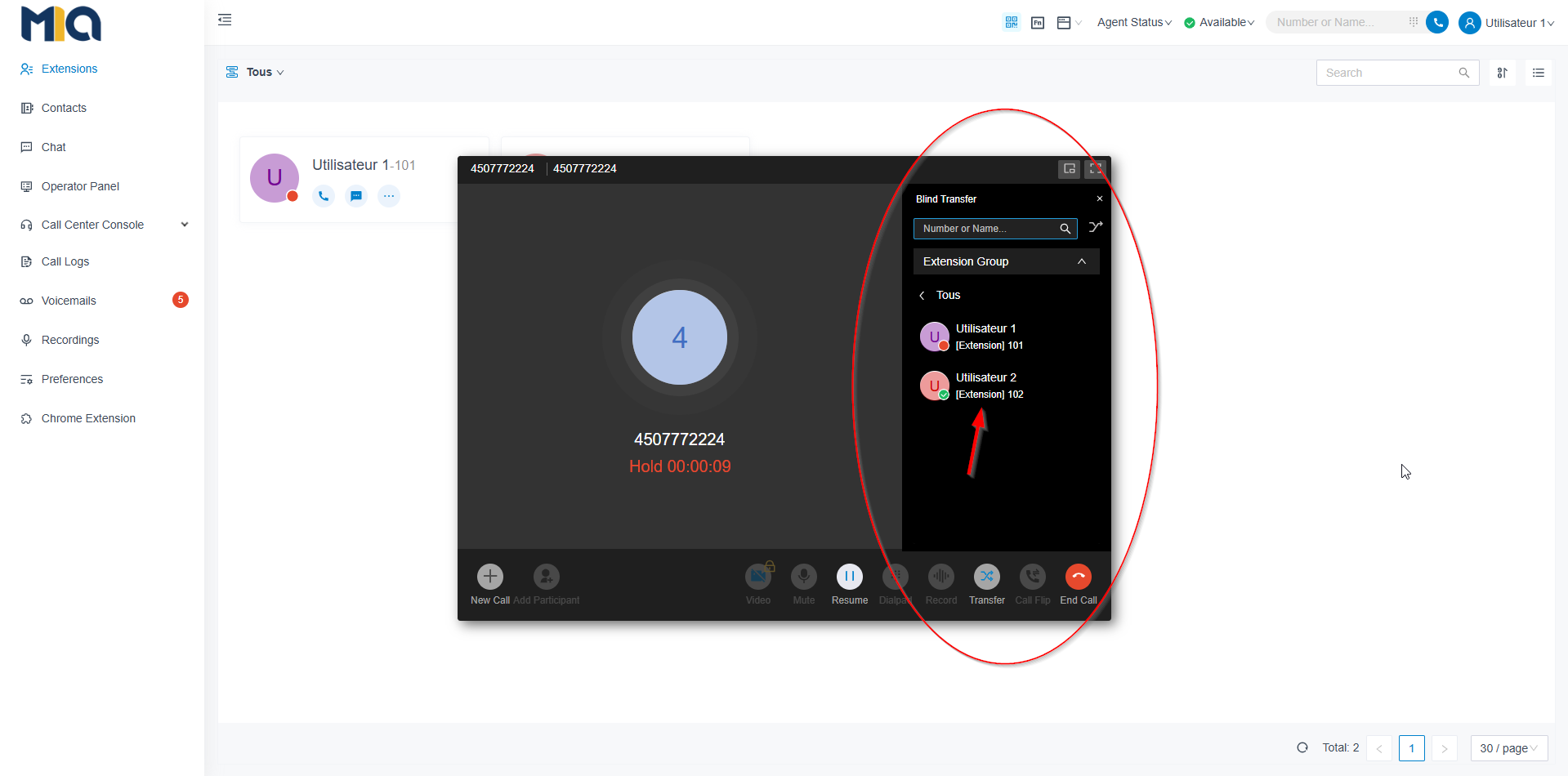
✔️ The transfer happens immediately.
(If the person does not answer, their rules apply — e.g., voicemail.)
See also:
Cet article a-t-il été utile ?
C'est super !
Merci pour votre commentaire
Désolé ! Nous n'avons pas pu vous être utile
Merci pour votre commentaire
Commentaires envoyés
Nous apprécions vos efforts et nous allons corriger l'article