With MIA voicemail, managing your messages is simple and accessible from anywhere.
Record your greeting and check your voicemail messages from the web interface, the mobile app, or directly from your phone.
TABLE OF CONTENTS
Configure your greeting
Your greeting is played when you are unable to answer a call.
It informs callers and may invite them to leave a message.
You can record, modify, or replace it in just a few clicks.
From the web interface
- Click Preferences, then open the Voicemail tab.
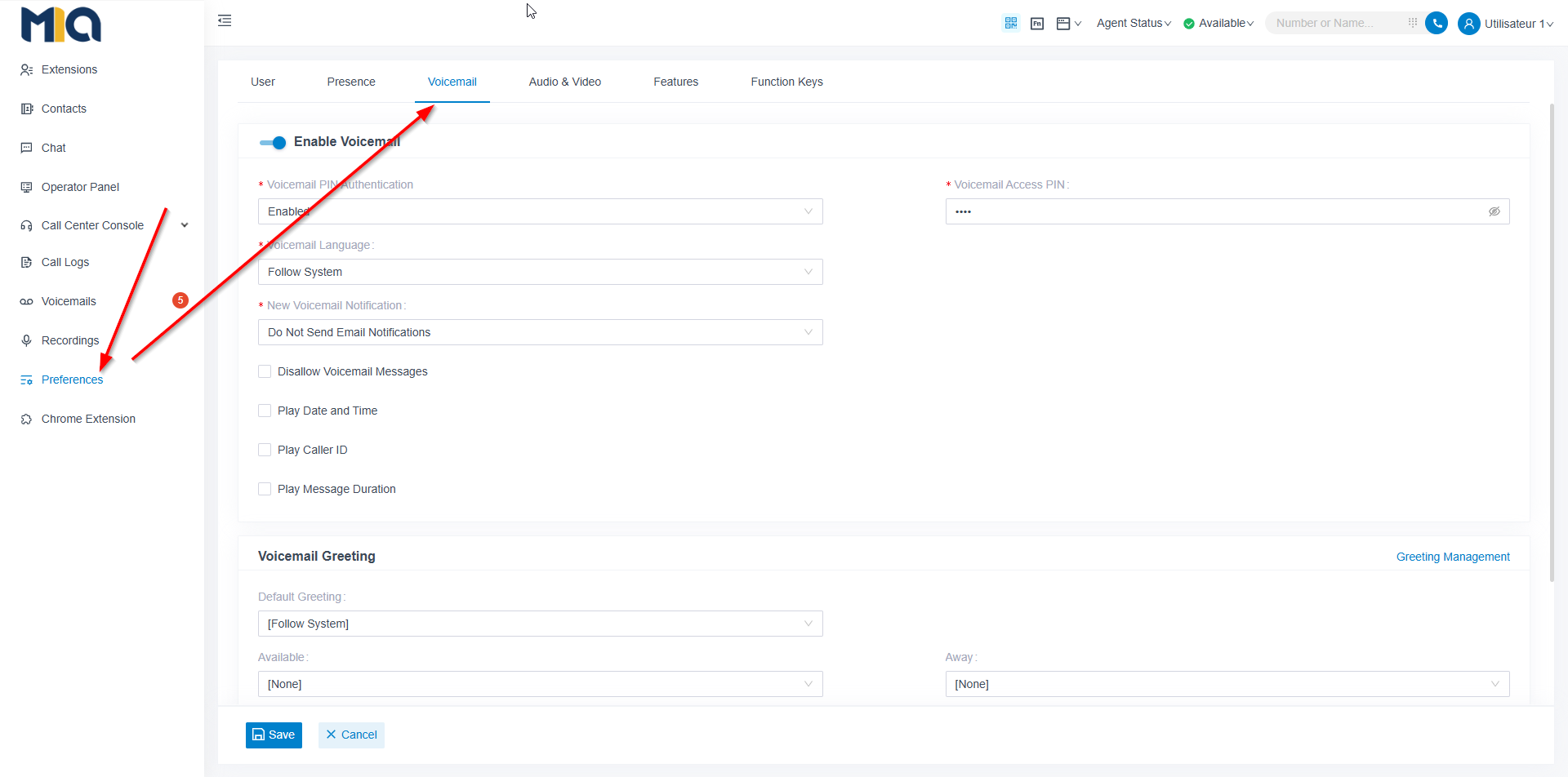
- Scroll down to Greeting Management.
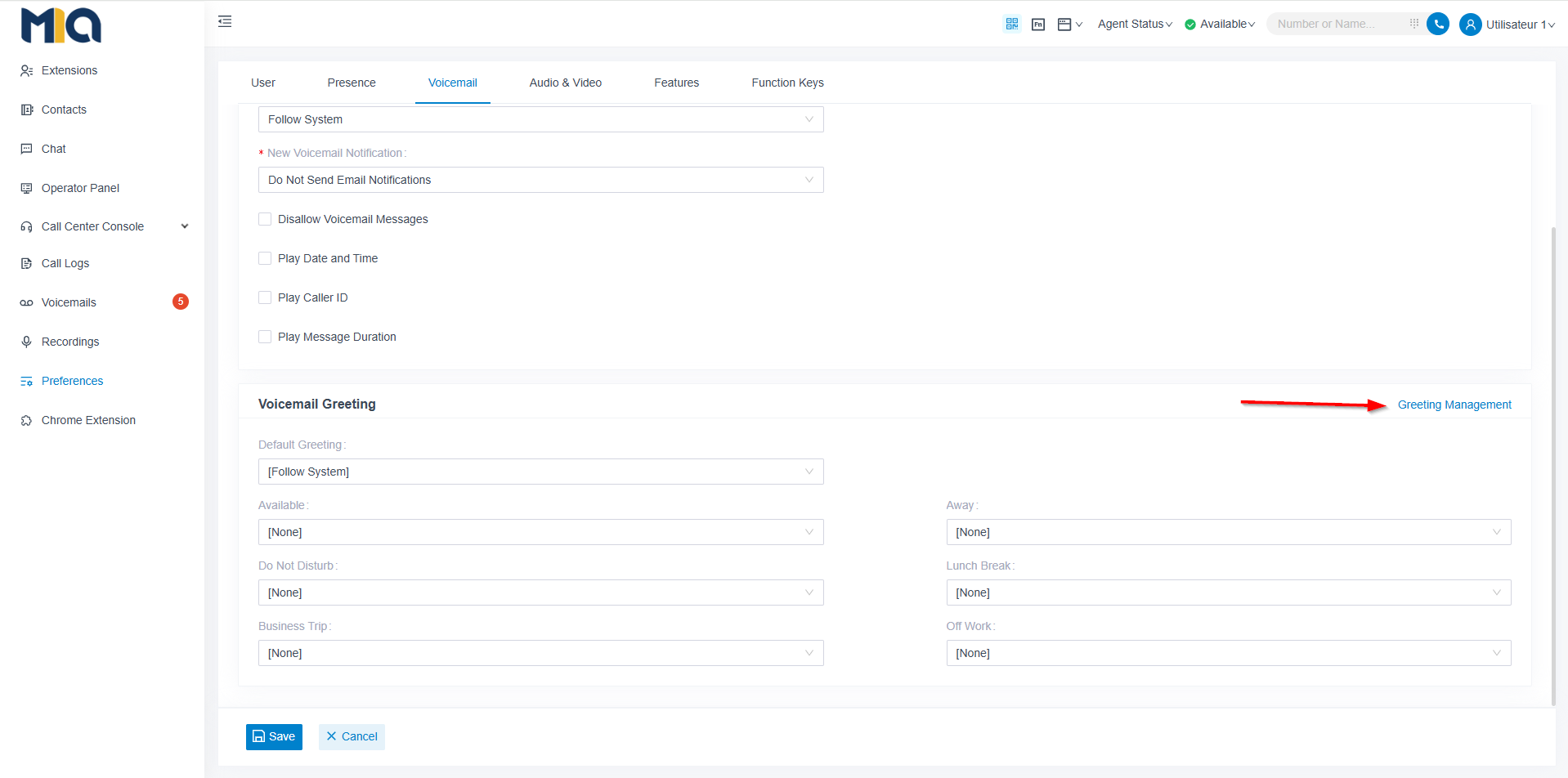
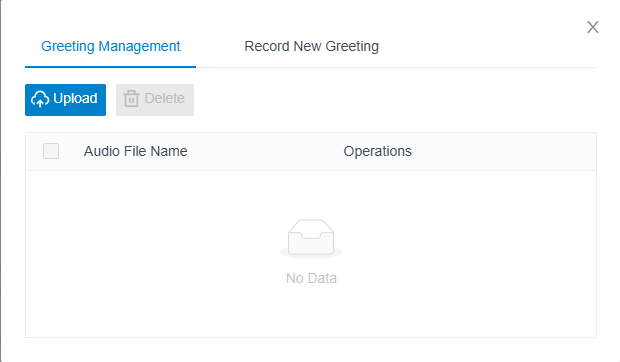
- You can then:
- upload an existing audio file
- Record a new greeting
- Enter a name for your message.
- Make sure your extension is selected
- Click Confirm.
Your phone or web interface will start ringing.
Answer the call and record your message.
- Once the recording is complete:
- Associate the message with the desired status (Available, Away, etc.).
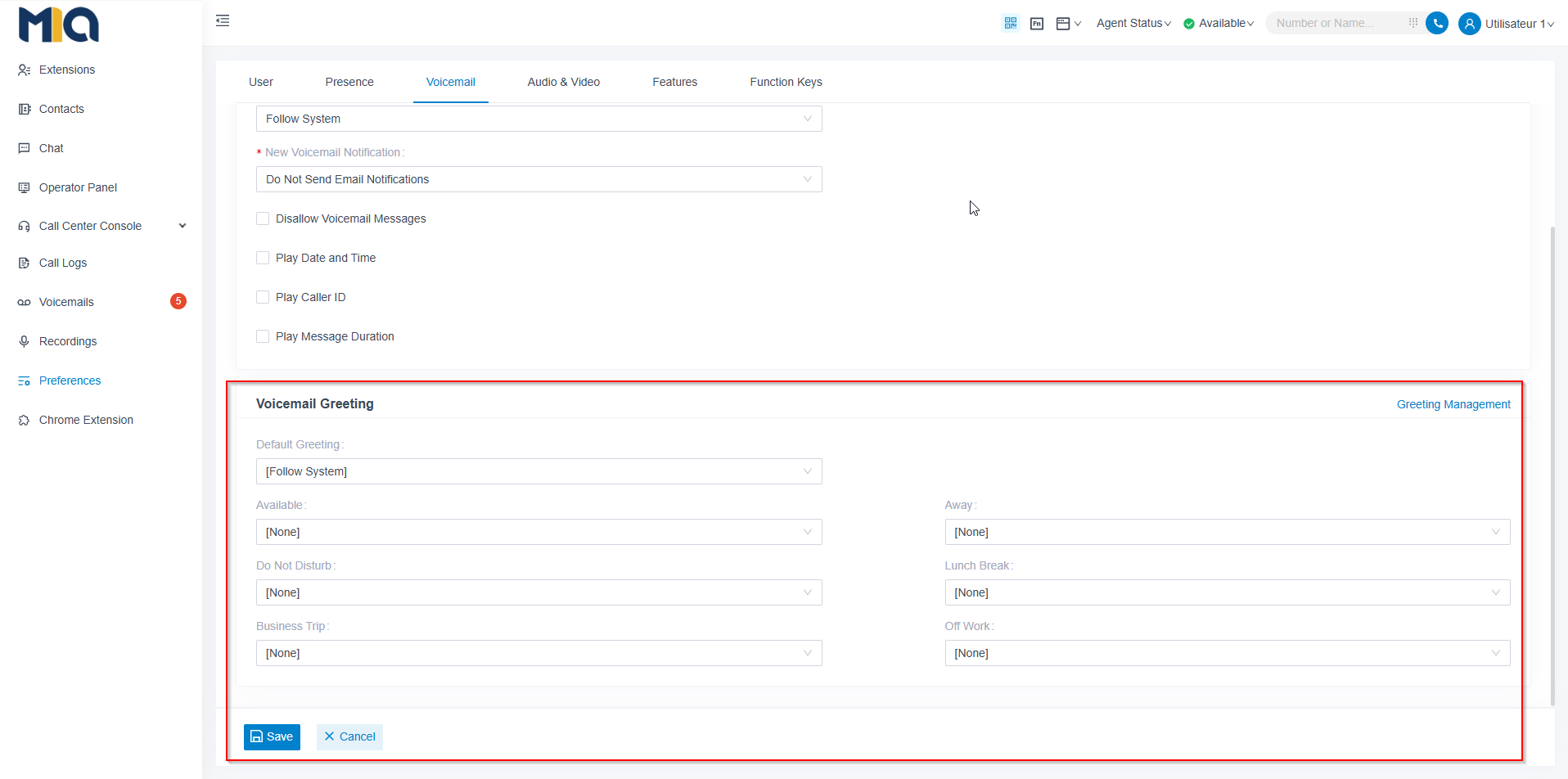
Click Save.
- Associate the message with the desired status (Available, Away, etc.).
From a phone or the mobile app
You can record your greeting directly from your desk phone or the MIA app.
- Dial *2 or press the voicemail key on your phone.

- If a PIN is requested, enter it, then press #.
Your PIN is included in your welcome email.
If you don’t have it, ask your administrator. - Select :
- 2 then 0 to record the default greeting
- 2 then 1 to 6 to record a greeting specific to a status
- After the beep, record your message.
- Press # to finish the recording.
- You can then :
- 1 – Save
- 2 – Listen
- 3 – Re-record
- * – Cancel
Check your voicemail messages
Your voicemail messages are accessible at any time from the web, your phone, or the mobile app.
You can listen to them, call the person back, or manage them in just a few steps.
From the web interface
- Open the Voicemails section.
- Your messages are displayed with call details.
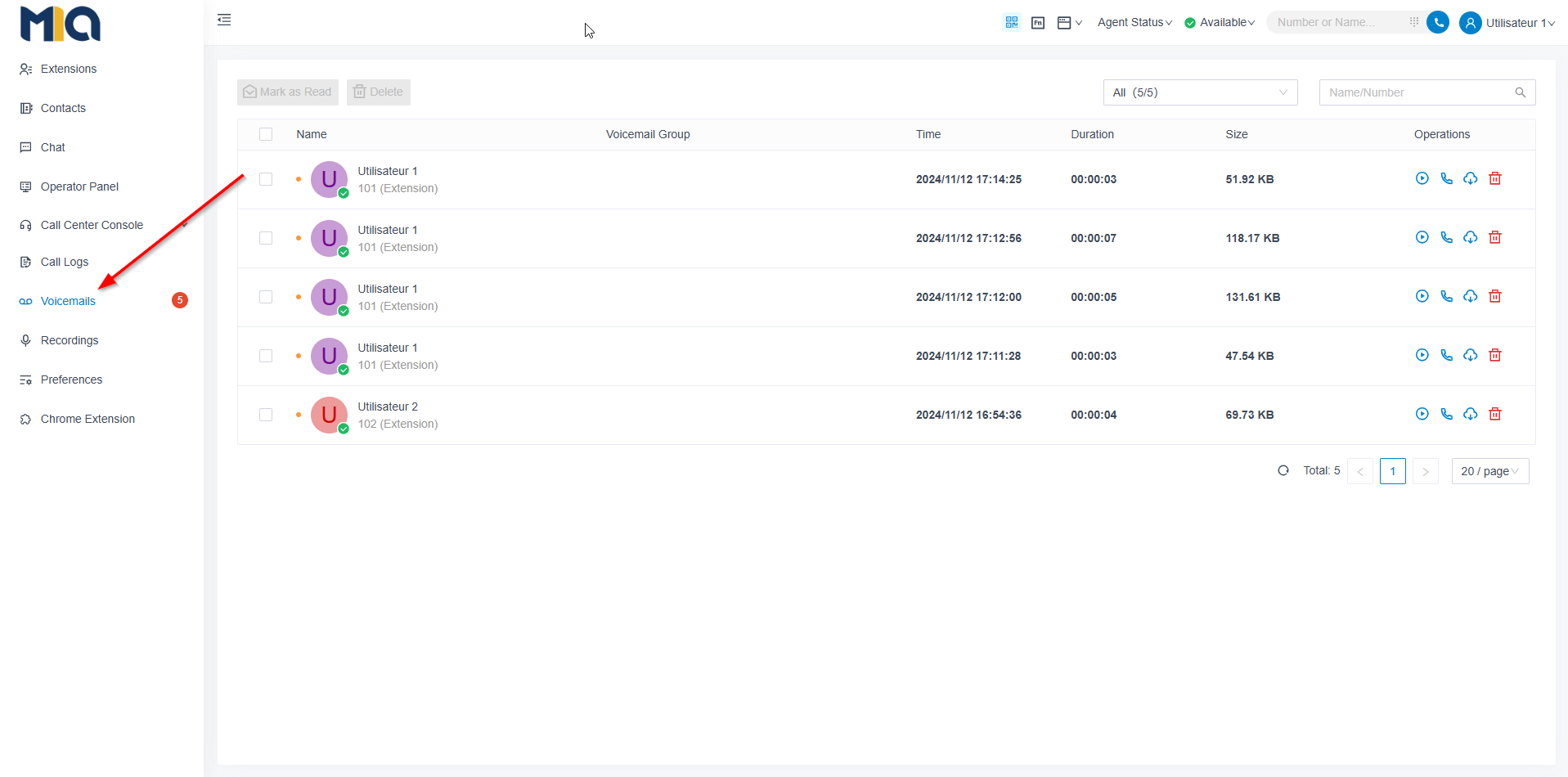
To the right of each message, use the buttons to :
Listen to the message 
Call the person back 
Download the message 
Delete the message
From a desk phone
- Dial *2 or press the voicemail key.

- If a PIN is requested, enter it, then press #.
Your PIN is included in your welcome email.
If you don’t have it, ask your administrator. - Press 1 to listen to your messages.
During playback, you can :
- 1 – next message
- 2 – previous message
- 3 – replay the message
- 4 – delete the message
- 5 – call the person back
- 6 – forward the message to another extension
- * – return to the previous menu
From the mobile app (iOS / Android)
- Tap the Calls icon
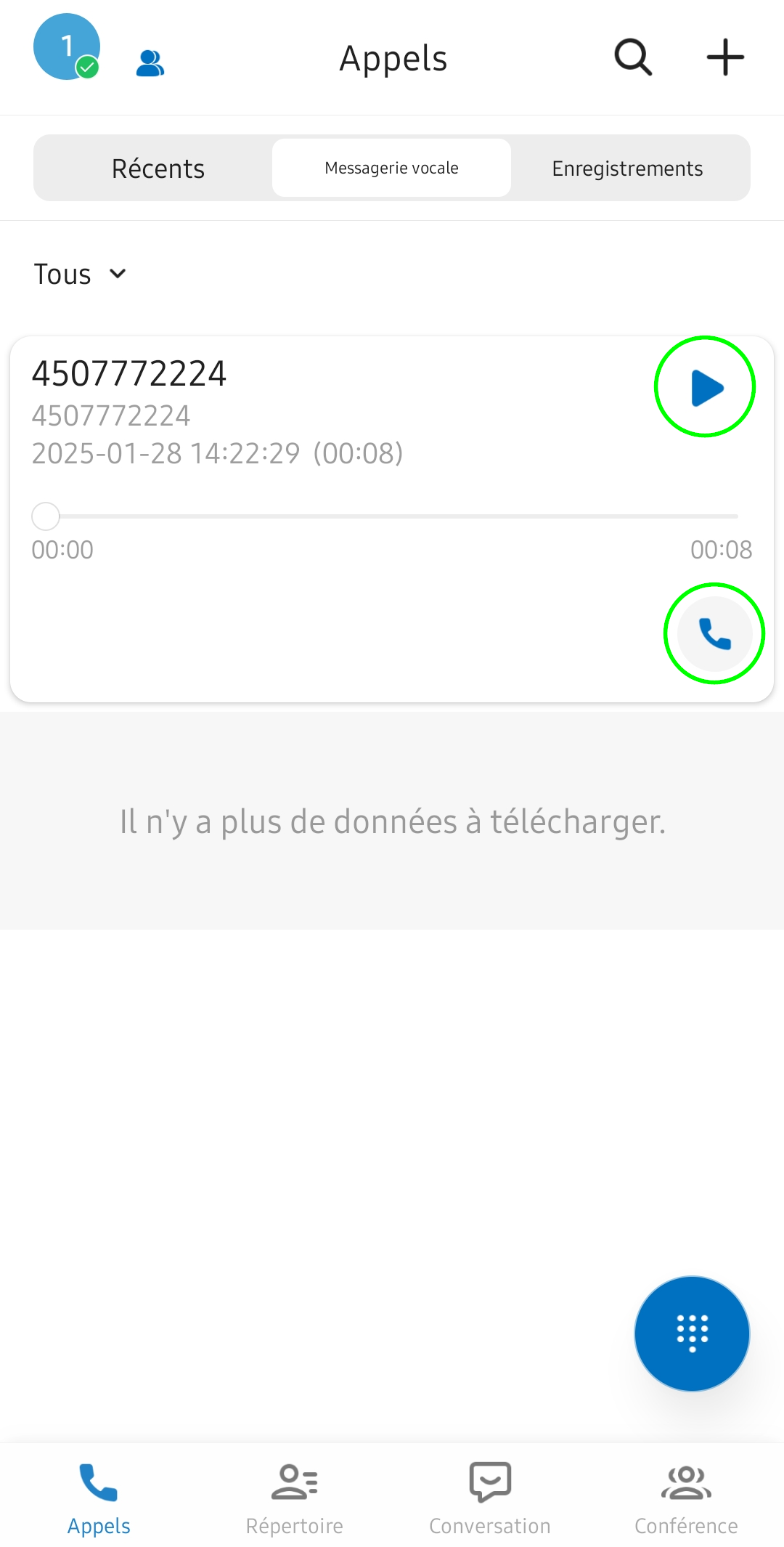
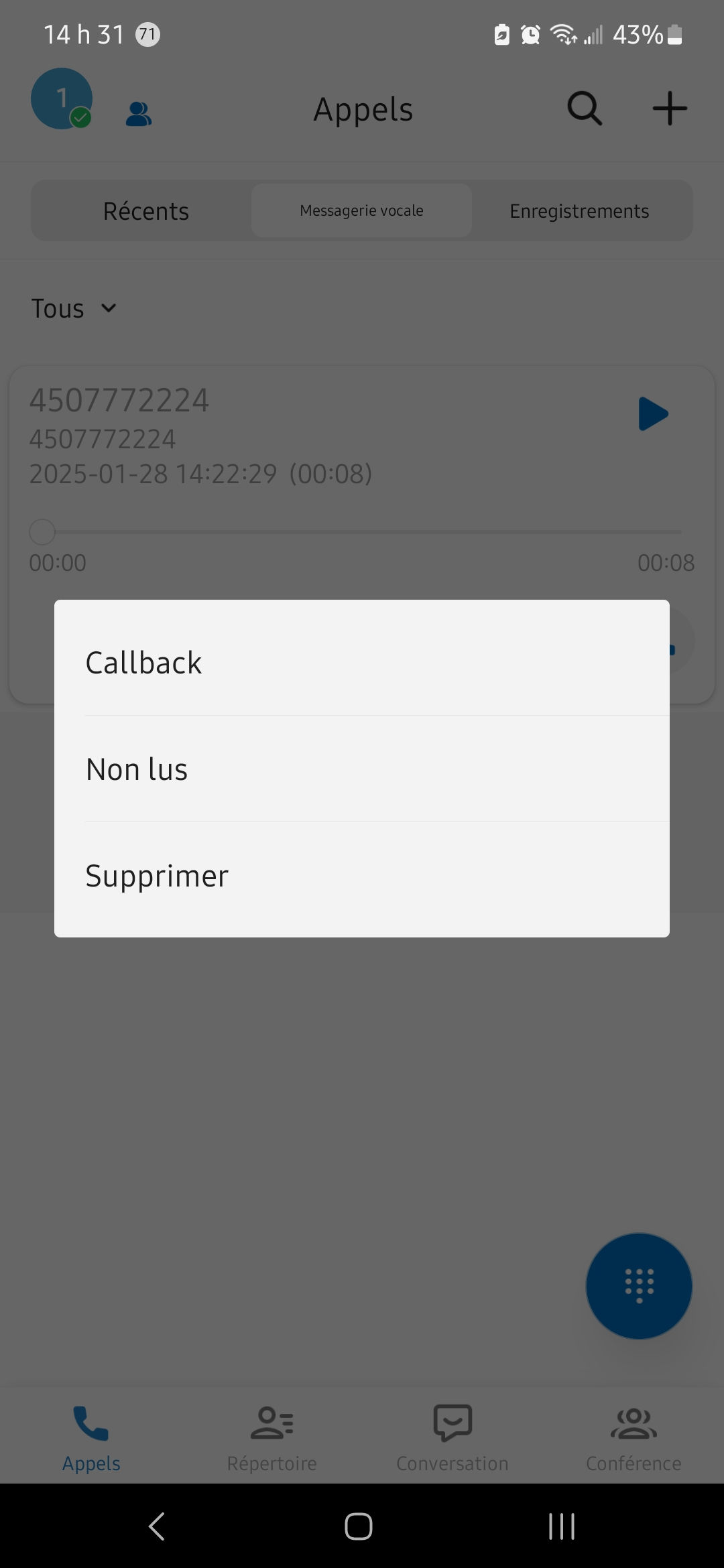
Select Voicemail Tap a message to listen or call the person back. Press and hold a message to display more options. 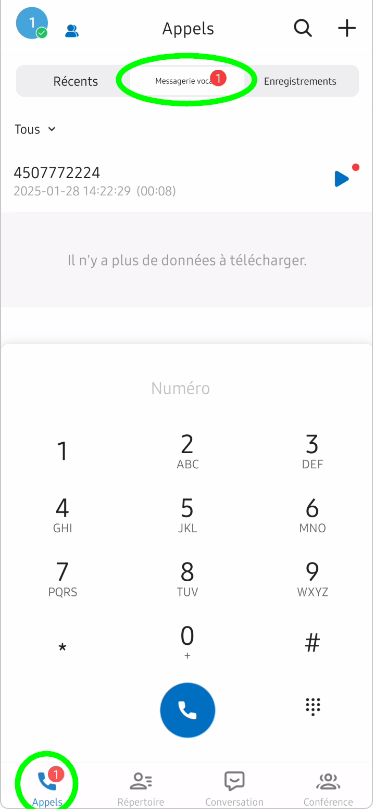
Cet article a-t-il été utile ?
C'est super !
Merci pour votre commentaire
Désolé ! Nous n'avons pas pu vous être utile
Merci pour votre commentaire
Commentaires envoyés
Nous apprécions vos efforts et nous allons corriger l'article